
IBPS Clerk Form Submitted or Not After Internet Disconnect? 7 Critical Checks
Quick Overview
Practice free quizzes, mock tests, current affairs and exam-wise preparation resources on ExamTune.
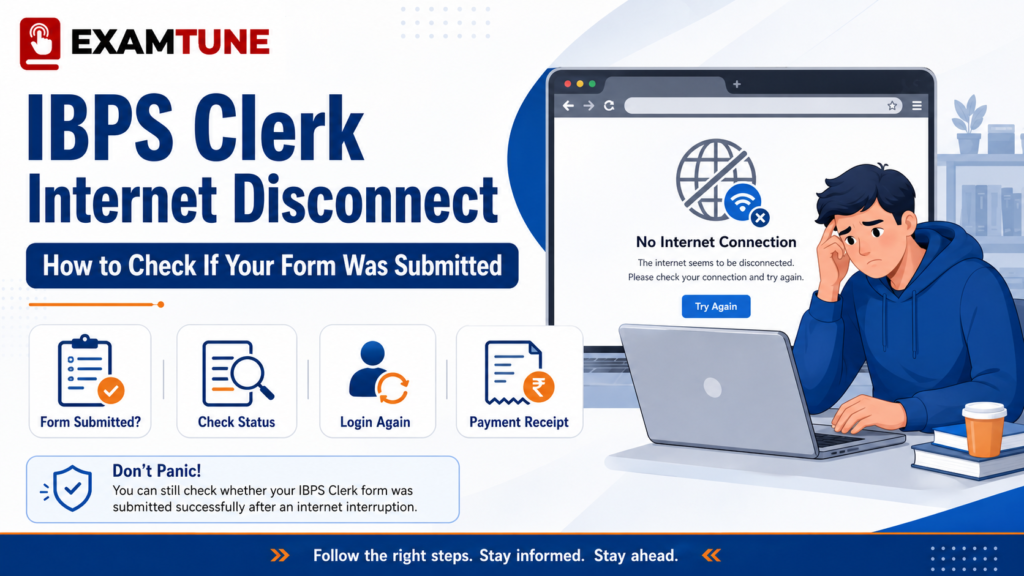
Check whether the IBPS Clerk application was submitted successfully after an internet interruption.
Last Updated: 4 August 2026
Is your IBPS Clerk Form Submitted after the internet disconnected, the browser closed, or the payment confirmation page failed to load? This is a common concern during online registration because a provisional registration number may be generated even when some application steps are still incomplete.
The safest approach is to log in again through the official portal and verify the completed application form, successful payment status and e-receipt. Under the official IBPS instructions, online registration is complete only after the application has been filled in completely and the required fee has been paid online.
Quick Answer: Your IBPS Clerk Form Submitted status is strongly confirmed when you can download the system-generated completed application form and payment e-receipt, and the portal does not show a pending Complete Registration or payment step. A registration number alone is not proof of final submission.
Current CRP CSA-XVI dates: Online registration and fee payment are open from 1 August to 21 August 2026. The last date for printing the application is 5 September 2026. Resolve any submission or payment issue before the registration deadline.
How to Check IBPS Clerk Form Submitted Status
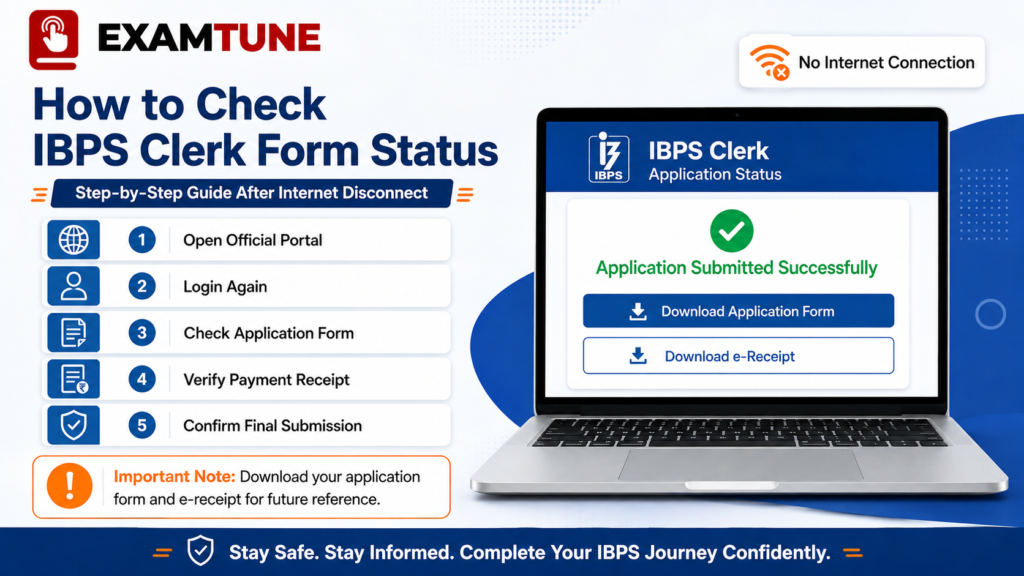
Follow these steps to verify the IBPS Clerk application form, payment e-receipt and final submission status.
Use the registered-candidate login instead of starting a fresh registration immediately. The official application portal provides login access for editing an incomplete application, online payment, e-receipt printing and application printing.
Step 1: Open the Official IBPS Application Portal
Open the official IBPS website and select the CRP Customer Service Associate application link. Avoid links from unknown messages, advertisements or unofficial websites.
Check IBPS Clerk Application Status
Step 2: Use Registered Candidate Login
Enter the provisional registration number and password generated during the original registration. If the password is unavailable, use the official Forgot Password option with the same registered mobile number or email address.
Step 3: Check the Dashboard Carefully
| What You See | Likely Meaning | Required Action |
|---|---|---|
| Completed application form is available | The application data has been submitted and a system-generated form is available. | Download the PDF and verify every detail. |
| Payment e-receipt is available | The online transaction has been completed successfully. | Download and preserve the e-receipt. |
| Continue Application option appears | One or more application sections may still be incomplete. | Open the saved form and finish the pending sections. |
| Complete Registration button appears | Final submission has not yet been completed. | Review all fields and complete registration. |
| Pay Now or Make Payment appears | The fee may not have been successfully recorded. | Check the earlier transaction before paying again. |
| Document upload or preview remains pending | Required files may be missing or not uploaded correctly. | Upload the documents and verify their previews. |
For document requirements, file formats and upload checks, read the IBPS Clerk documents required guide before completing the pending application.
IBPS Clerk Form Submitted: Strongest Proof
The following records provide the strongest evidence that the IBPS Clerk Form Submitted process is complete:
- System-generated online application form: The completed form is available for print or download.
- Payment e-receipt: The portal generates an e-receipt after successful completion of the online transaction.
- No pending payment step: The dashboard does not ask you to pay the application fee again.
- No pending Complete Registration step: The form no longer opens as an editable incomplete application.
- Uploaded documents are visible: Photograph, signature, thumb impression, declaration and certificates appear clearly in the final form.
- Registration acknowledgement: Registration number and password are available through the screen, email or SMS.
Is a Registration Number Proof That the Form Is Submitted?
No. A provisional registration number is generated when basic information or saved application data is registered. The official instructions allow candidates to reopen saved data using the provisional registration number and password.
You may have a registration number while these steps are still pending:
- Personal, category or state details
- Educational qualification information
- Participating-bank preferences
- Photograph and signature upload
- Left thumb impression
- Handwritten declaration
- Class 10 certificate or other applicable certificate
- Live photograph capture
- Final declaration and Complete Registration
- Online application fee payment
If the registration number appears blank or zero, see the IBPS Clerk blank registration number solution before creating another application.
What to Do If the Internet Disconnects During Payment
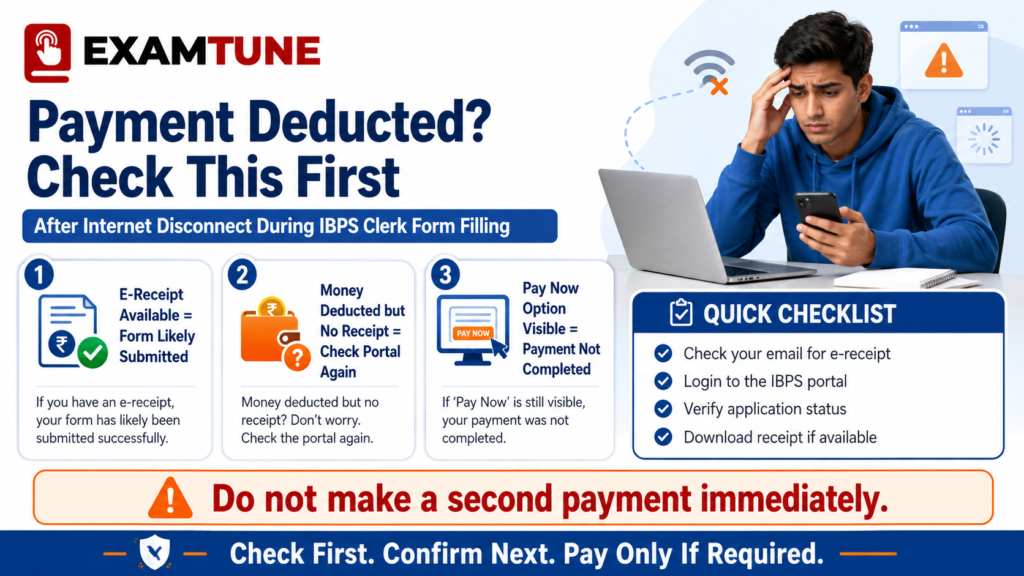
Do not make another payment immediately if money is deducted but the payment confirmation or e-receipt is missing.
An internet failure during payment can occur after the bank debits the amount but before the portal displays the success page. Do not press the browser Back or Refresh button repeatedly because the official instructions warn that this may lead to a double charge.
If Money Is Deducted and the E-Receipt Is Generated
If the e-receipt and system-generated application form are available, the transaction has been recorded successfully. Download both documents and confirm that the payment information appears in the application printout.
If Money Is Deducted but No E-Receipt Is Generated
The official instructions state that if the e-receipt and online application form cannot be generated, the online transaction may not have been successful. Follow this sequence:
- Wait for the server response and do not repeatedly refresh the page.
- Check the final status in your bank, UPI or card account.
- Log in again with the existing registration number and password.
- Check whether the e-receipt has appeared.
- Check whether the system-generated application form is downloadable.
- Save the transaction ID and screenshots.
- If the portal still shows an unsuccessful payment, complete payment before the deadline.
If the Portal Still Shows “Pay Now”
Do not assume the earlier debit completed the application. First confirm that the earlier transaction is not pending. If the online transaction was not successfully completed, the official instructions advise candidates to log in again and pay the required fee online.
What Happens If the Internet Disconnects at Different Stages?
1. After Basic Registration
Your provisional registration may be saved if the registration number and password were generated. Log in again and continue the application. The form is not complete merely because basic registration succeeded.
2. While Filling Personal or Qualification Details
Details saved through Save and Next may remain available. Reopen every tab and verify all fields before proceeding. You can also review the IBPS Clerk Apply Online process to ensure that no stage is missed.
3. During Document Upload
Open the upload section and inspect every preview. A file should not be treated as successfully uploaded merely because it was selected from your device. If the preview is missing, blurred or placed in the wrong field, upload it again.
Check the current size and format requirements through the IBPS Clerk photo and signature size guide.
4. On the Final Preview Page
Viewing the preview does not submit the form. If the declaration was not accepted or the Complete Registration button was not clicked, final submission remains pending.
5. After Clicking Complete Registration
Log in again. If the form is available only as a final system-generated application and is no longer editable, the submission step has likely completed. You must still verify the fee payment and e-receipt.
6. After Completing Payment
Check whether both the e-receipt and completed application form can be generated. These records are more reliable than relying only on the bank debit alert.
Can You Edit the Form After Complete Registration?
The official instructions allow candidates to use Save and Next to verify and modify details before clicking Complete Registration. No change is permitted through the normal application flow after Complete Registration.
IBPS may provide a separate edit window after the application closing date. Only successfully submitted and paid applications are eligible, and only permitted fields can be corrected. Always follow the recruitment-specific edit-window notice.
Should You Fill a New IBPS Clerk Form?
Do not create a duplicate registration only because the internet connection stopped. First determine whether the existing IBPS Clerk Form Submitted record is complete.
| Situation | Recommended Action |
|---|---|
| Existing login works and completed form plus e-receipt are available | Do not register again. Save all records. |
| Continue Application is visible | Complete the existing saved application. |
| Payment is pending and Pay Now is visible | Verify the earlier transaction, then complete payment if required. |
| Registration number is blank or zero | Follow the official FAQ guidance for re-registration. |
| No registration record, no application print and no e-receipt | Verify through the official portal and grievance support promptly. |
What to Do If You Cannot Log In
- Check the registration email and SMS.
- Search Spam, Junk, Promotions and All Mail.
- Use the official Forgot Password option.
- Use the same mobile number or email address entered during registration.
- Remove accidental spaces while copying the registration number.
- Confirm that you opened the CRP CSA-XVI login page.
- Try a supported browser and stable internet connection.
If the registration acknowledgement email is missing, use the IBPS Clerk registration email not received guide to check SMS, login and application reprint records.
Final IBPS Clerk Form Submission Checklist
- Registration number and password are saved.
- Registered-candidate login works.
- All personal and eligibility details are complete.
- Category, state and bank preferences are correct.
- All required documents have been uploaded.
- Every uploaded image and certificate is clearly visible.
- Final declaration has been accepted.
- Complete Registration has been completed.
- Application fee status is successful.
- Payment e-receipt has been downloaded.
- System-generated application form has been downloaded.
- No Continue Application, Complete Registration or Pay Now step remains pending.
When every item above is verified, your IBPS Clerk Form Submitted status has strong supporting proof.
Common Mistakes Candidates Should Avoid
- Assuming that a registration number means final submission.
- Pressing Back or Refresh during the payment process.
- Making another payment without checking the existing transaction.
- Creating a duplicate registration before checking the saved form.
- Ignoring a missing e-receipt.
- Not downloading the system-generated application form.
- Ignoring blank or unclear document previews.
- Waiting until the final date to resolve the issue.
- Entering credentials on unofficial websites.
IBPS Clerk Form Submitted FAQs
How do I know whether my IBPS Clerk form is finally submitted?
Log in and check whether the completed system-generated application form and successful payment e-receipt are available. Also confirm that no Complete Registration or payment step remains pending.
Does an internet disconnect cancel the IBPS Clerk application?
No. Data saved before the interruption may remain available. Log in with the provisional registration number and password to check and complete the application.
Is the provisional registration number proof of final submission?
No. It can be generated for saved data before the application is fully completed and paid.
What if the fee is deducted but no e-receipt appears?
Check the portal and transaction status again. The official instructions state that when the e-receipt and application form cannot be generated, the online transaction may not have been successful.
Should I pay again immediately after a payment-page error?
No. First check whether the earlier transaction is pending, whether an e-receipt has appeared and whether the application form is downloadable.
Can I edit my IBPS Clerk form after Complete Registration?
Normal editing stops after Complete Registration. A separate official edit window may allow limited corrections for successfully submitted and paid applications.
Should I fill a fresh application after an internet disconnect?
Not immediately. Check the existing login, saved application, payment status, e-receipt and application print before creating another registration.
What is the strongest proof of successful IBPS Clerk submission?
The strongest practical records are the system-generated completed application form, successful payment e-receipt and a dashboard without pending completion or payment steps.
Final Conclusion
An internet disconnect does not automatically delete or cancel the application. However, a provisional registration number alone cannot confirm that the IBPS Clerk Form Submitted process is complete.
Log in again and verify the completed application form, payment e-receipt, document previews and final registration status. If Continue Application, Complete Registration or Pay Now is still visible, finish the pending step before 21 August 2026.
Official Sources
Disclaimer: Portal labels and available options may vary by recruitment cycle. Candidates should follow the latest official notification, application portal and IBPS instructions.
Frequently Asked Questions
How can I check whether my IBPS Clerk form is submitted?
Log in through the official application portal using your registration number and password. Check whether the completed application form and payment e-receipt are available for download.
Is receiving a registration number enough to confirm submission?
No. A registration number may be generated before the entire application, document upload and payment process is completed.
What should I do if the internet disconnects after payment?
Log in again and check the payment e-receipt and completed application form. Do not immediately pay again without checking the earlier transaction status.
My money was deducted, but the application shows payment pending. What should I do?
Check whether the transaction is pending, successful or failed through your bank and the application portal. Recheck the portal after some time and follow the official payment instructions before the deadline.
Can I continue the application using the same registration number?
Yes, if the application is still open and the portal permits saved applications to be continued, log in using the same registration number and password.
How do I know whether my documents were uploaded?
Open the document upload or preview section. Each successfully uploaded document should be visible clearly in its respective preview area.
Should I register again if the confirmation page did not appear?
No. First log in using the existing registration details and check the application and payment status.
What documents should I save after submitting the form?
Save the completed application form, payment e-receipt, registration email or SMS and relevant payment transaction details.
What does it mean if the “Complete Registration” option is still visible?
If the “Complete Registration” option is still visible after login, your application may not have been finally submitted. Review all details, complete the pending steps and submit the form before the application deadline.
Can I edit my details after the IBPS Clerk form is submitted?
Usually, details cannot be changed after final submission unless IBPS provides an official correction or edit window. Check the latest notification and application portal instructions to confirm which fields can be edited.
Practice free quizzes, mock tests, current affairs and exam-wise preparation resources on ExamTune.