IBPS Clerk Image Resizer 2026: Resize Photo & Signature
Quick Overview
Practice free quizzes, mock tests, current affairs and exam-wise preparation resources on ExamTune.
IBPS Clerk 2026 Official Image Upload Guidelines
Official IBPS document containing the prescribed file-size requirements for photograph, signature, thumb impression and handwritten declaration for CRP CSA-XVI.
If you are preparing images for the IBPS Clerk application form, getting the file size and dimensions right is important. The IBPS Clerk Image Resizer requirement is not limited to reducing the KB size of a photograph. Your photograph, signature, left thumb impression and handwritten declaration have separate dimensions and file-size limits.
For CRP CSA-XVI, IBPS has prescribed specific upload requirements. A file that is too large, too small, blurred or incorrectly cropped may not upload properly. This guide explains the correct IBPS Clerk photo size, signature dimensions and a simple 5-step method to resize images without reducing their readability.
IBPS Clerk Image Resizer 2026: Overview
The IBPS Clerk Image Resizer process helps candidates prepare their scanned documents according to the specifications prescribed by IBPS. The photograph and signature need different pixel dimensions and KB limits, so using the same resize setting for every file is not recommended.
Before resizing, keep the original files clear and properly scanned. Compressing an already blurred image can make the photograph, signature or handwritten declaration difficult to read.
| Upload | Preferred Dimensions | File Size | Important Requirement |
|---|---|---|---|
| Photograph | 200 × 230 pixels | 20 KB–50 KB | Recent colour photograph with a light, preferably white background |
| Signature | 140 × 60 pixels | 10 KB–20 KB | Sign on white paper using black ink |
| Left Thumb Impression | 240 × 240 pixels at 200 DPI | 20 KB–50 KB | Use black or blue ink on white paper |
| Handwritten Declaration | 800 × 400 pixels at 200 DPI | 50 KB–100 KB | Write clearly in English on white paper using black ink |
How to Use IBPS Clerk Image Resizer in 5 Easy Steps
You do not need to repeatedly upload random versions of your photograph to find the correct size. Follow these five practical steps while using an IBPS Clerk Image Resizer or any reliable image editing tool.
Step 1: Select the Correct Image
First, choose whether you are preparing the photograph, signature, thumb impression or handwritten declaration. Do not apply one common setting to every document because each file has a different size requirement.
For your photograph, start with a recent and clear passport-style colour image. Your face should be easily visible and the background should be light coloured, preferably white.
Step 2: Set the Required Dimensions
Enter the correct width and height according to the document you are resizing. For the candidate photograph, the preferred dimensions are 200 × 230 pixels. The preferred IBPS Clerk signature size is 140 × 60 pixels.
Avoid stretching the image just to reach the required dimensions. Incorrect stretching can distort your face or signature. Crop unnecessary background first and then resize the image while keeping the important content clearly visible.
Step 3: Compress the File to the Correct KB Range
After adjusting the dimensions, check the actual file size. The IBPS Clerk Image Resizer should reduce the file without making the image unclear.
The scanned photograph should remain between 20 KB and 50 KB, while the signature should be between 10 KB and 20 KB. The left thumb impression should be between 20 KB and 50 KB, and the handwritten declaration should be between 50 KB and 100 KB.
Do not compress the image more than necessary. Extremely heavy compression may make the photograph pixelated or the handwriting difficult to read.
Step 4: Save the Image in the Required Format
Save the prepared image in JPG/JPEG format as required for the relevant scanned image uploads. Before saving the final file, zoom in once and check that the photograph, signature, thumb impression or declaration is clearly visible.
It is also useful to rename your files clearly, for example, IBPS-Photo.jpg or IBPS-Signature.jpg. A clear filename helps you avoid uploading the wrong document in the wrong field.
Step 5: Check the File Before Uploading
Before uploading the resized file, verify its dimensions, KB size and visibility once again. The purpose of an IBPS Clerk Image Resizer is not simply to create a smaller file; the final image must also remain clear enough for verification.
Always preview the uploaded image on the application portal before moving to the next step. If the preview looks cropped, blurred or distorted, prepare the file again instead of submitting an unclear image.
IBPS Clerk Photo Size 2026
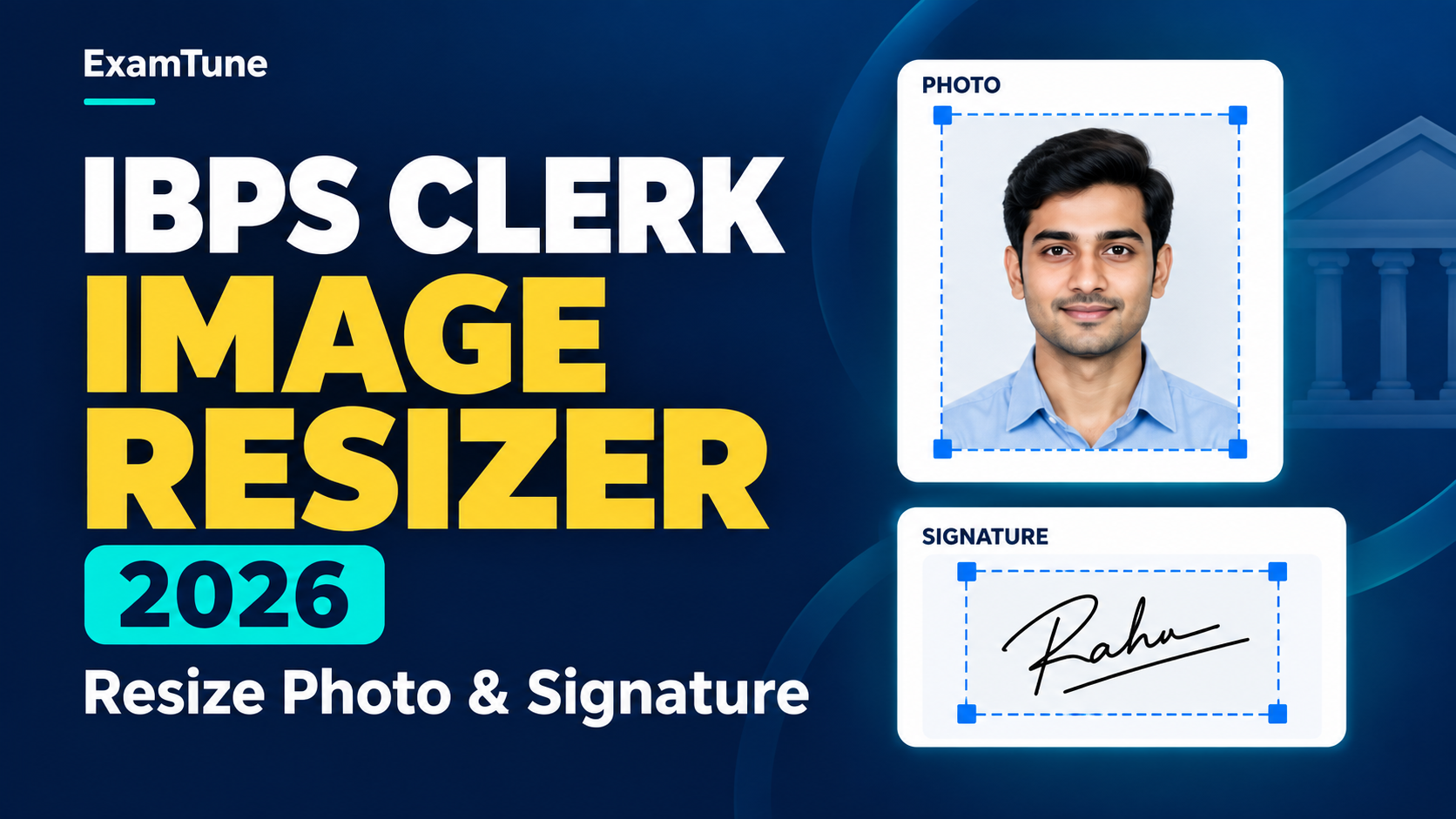
The preferred IBPS Clerk photo size is 200 × 230 pixels, and the scanned image should be between 20 KB and 50 KB. IBPS describes the photograph as a recent passport-style colour photograph and recommends a light-coloured, preferably white, background.
Your face should be clearly visible. Avoid dark glasses, caps, heavy shadows or a background that makes the face difficult to identify. Religious headwear may be worn, but it should not cover the face.
IBPS Clerk Signature Size 2026
The preferred IBPS Clerk signature size is 140 × 60 pixels, with a file size between 10 KB and 20 KB. The applicant should sign on white paper using a black ink pen.
The signature should be the candidate’s normal running signature and should remain clearly visible after resizing. IBPS specifically states that the signature should not be in capital letters.
Do not make the signature unusually small inside a large blank area. Crop the unnecessary white space carefully before using the IBPS Clerk Image Resizer.
IBPS Clerk Left Thumb Impression Size
The left thumb impression should preferably be prepared at 240 × 240 pixels at 200 DPI, which corresponds to approximately 3 cm × 3 cm. The file size should be between 20 KB and 50 KB.
The thumb impression should be placed on white paper using black or blue ink and saved as a clear JPG/JPEG image. Candidates who cannot provide the left thumb impression because the left thumb is unavailable should follow the alternative finger/thumb instructions given by IBPS rather than uploading an unrelated impression.
IBPS Clerk Handwritten Declaration Size
The handwritten declaration has a larger image requirement than the photograph and signature. Its preferred dimensions are 800 × 400 pixels at 200 DPI, approximately 10 cm × 5 cm, and the file should be between 50 KB and 100 KB.
The declaration must be written clearly in English on white paper using black ink, and it must not be in capital letters. Candidates who can write should write it themselves. The notification permits candidates who cannot write to use a typed declaration and put their left-hand thumb impression below it if they also cannot sign. Ensure that the complete declaration is visible and follows the prescribed upload specifications.
While using the IBPS Clerk Image Resizer for the declaration, avoid cropping the first or last line. Check all four edges of the final image before saving it.
IBPS Clerk Live Photograph Requirement
The scanned passport-style photograph is not the only photo-related requirement in the CRP CSA-XVI application process. IBPS also requires candidates to capture a live photograph during online registration.
The live image can be captured using a webcam or through a mobile phone using the option provided on the application portal. Candidates should look directly at the camera and use adequate lighting with a light-coloured background.
A previously resized scanned photograph cannot replace the live photograph step because both are separate parts of the application process.
Common Mistakes While Resizing IBPS Clerk Images
| Mistake | What to Do Instead |
|---|---|
| Uploading a phone photo of several MB | Resize and compress it to the prescribed KB range |
| Stretching the photograph | Crop first and then resize without distorting the face |
| Making the signature too small or blurred | Use a clear original signature and remove unnecessary white space |
| Writing the signature in capital letters | Upload your normal running signature |
| Using the same dimensions for every document | Follow the separate specifications for each image |
| Over-compressing the image | Keep the file within the required KB range while maintaining clarity |
IBPS Clerk Photo and Signature Size: Final Checklist
Before uploading any file, check the IBPS Clerk photo and signature size carefully. Your photograph should preferably be 200 × 230 pixels and 20–50 KB, while your signature should preferably be 140 × 60 pixels and 10–20 KB.
Also remember that the thumb impression and handwritten declaration have their own specifications. An IBPS Clerk Image Resizer can make the process easier, but candidates should always compare the final file with the instructions displayed on the official IBPS application portal before submission.
Why Correct IBPS Clerk Image Size Matters
Students often focus on completing the academic and personal details in the application form and leave image preparation for the last minute. This can create unnecessary problems when a file does not match the required dimensions or KB limit.
Preparing the IBPS Clerk image size in advance makes the upload process smoother. Keep separate folders or clearly named files for your photograph, signature, thumb impression and declaration so that the correct document is selected for each upload field.
Most importantly, do not sacrifice image clarity simply to reduce the KB size. A good IBPS Clerk Image Resizer workflow should maintain a balance between the prescribed file size and clear visibility.
Conclusion
The IBPS Clerk online application requires more than simply uploading any photograph and signature. Each scanned image has its own preferred dimensions and file-size range. Candidates should resize the photograph to 200 × 230 pixels and 20–50 KB, while the signature should preferably be 140 × 60 pixels and 10–20 KB.
Use the IBPS Clerk Image Resizer carefully, preview every file after resizing and cross-check the latest instructions on the official IBPS website before uploading. Spending an extra minute checking your files can prevent avoidable upload problems during the application process.
Related IBPS Clerk 2026 Guides
Official Source & Verification
Source: IBPS CRP CSA-XVI Detailed Notification.
Candidates should check ibps.in for any subsequent corrigendum or examination update.
Popular Online Live Classes


Complete Quant Nayak Subscription For All Banking & Insurance Exams 2026-27

Bank Maha Pack | Complete Subscription for IBPS, RRB & SBI Exams 2026-27
Frequently Asked Questions
What is the IBPS Clerk photo size?
The preferred photo size is 200 × 230 pixels and 20–50 KB.
What is the IBPS Clerk signature size?
The preferred signature size is 140 × 60 pixels and 10–20 KB.
Which format is required for IBPS Clerk images?
Scanned images should be saved in JPG/JPEG format as specified by IBPS.
What is the IBPS Clerk thumb impression size?
The preferred size is 240 × 240 pixels at 200 DPI and 20–50 KB.
What is the handwritten declaration image size?
It should preferably be 800 × 400 pixels at 200 DPI and 50–100 KB.
Which ink should be used for the IBPS Clerk signature?
Candidates should sign on white paper using black ink.
Can the IBPS Clerk signature be in capital letters?
No. IBPS specifies that the uploaded signature should not be in capital letters.
Which ink is allowed for the left thumb impression?
Black or blue ink should be used on white paper.
Can I resize the IBPS Clerk photo before uploading?
Yes. Candidates can crop and resize the image to meet the prescribed dimensions and file-size limits.
Is IBPS Clerk 2026 registration currently open?
No. CRP CSA-XVI online registration closed on 28 August 2026.
About the Author

Practice free quizzes, mock tests, current affairs and exam-wise preparation resources on ExamTune.