
IBPS Clerk Form Mobile or Laptop? 7 Proven Tips to Avoid Errors
Quick Overview
Practice free quizzes, mock tests, current affairs and exam-wise preparation resources on ExamTune.
Last Updated:
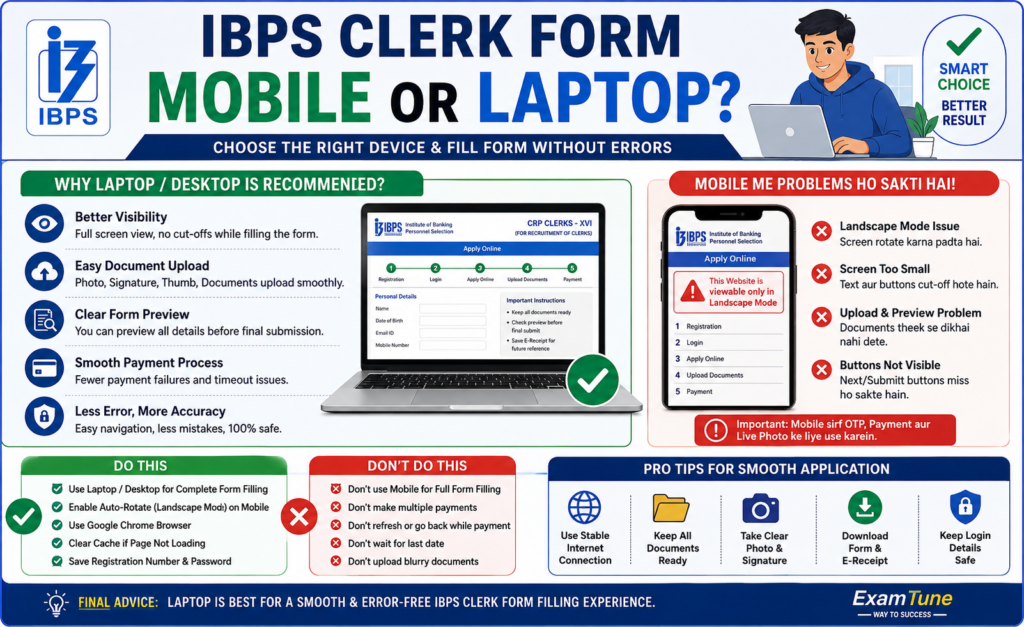
Should you fill the IBPS Clerk Form Mobile or Laptop? Many
candidates opening the official application portal on a smartphone receive the
message: “This Website is viewable only in Landscape Mode.”
The IBPS Clerk application can be accessed online, but a laptop or desktop is
generally safer for entering details, uploading documents, checking previews
and completing payment. A mobile phone can still be used when landscape mode
and a compatible browser work correctly.
For the IBPS Clerk Form Mobile or Laptop choice, a laptop or
desktop is the recommended option for filling the complete application. A
mobile phone may be used for basic registration, OTP, payment and live
photograph capture, but the phone must be kept in landscape mode when
required by the portal.
IBPS Clerk Form Mobile or Laptop: Which Is Better?
| Application Task | Mobile Phone | Laptop or Desktop |
|---|---|---|
| Basic registration | Possible | Easy and recommended |
| Entering personal details | Possible but less convenient | Easier on a large screen |
| Document upload | Possible but files may be difficult to manage | More convenient and reliable |
| Checking image previews | Preview may appear small | Clearer preview |
| Live photograph | Can be used where permitted by the portal | Webcam or mobile-phone method can be used |
| Bank preference selection | More scrolling may be required | Easier to review |
| Online payment | Possible | Easier to monitor and verify |
| Application PDF download | Possible | Easier to save and print |
| Overall recommendation | Use only when necessary | Best option |
Is a Laptop Compulsory for the IBPS Clerk Application?
When comparing IBPS Clerk Form Mobile or Laptop options, a
laptop is not specifically compulsory. The application must be submitted
online through the official IBPS portal. However, the portal contains multiple
pages, document-upload sections, preferences, declarations and payment steps.
Therefore, candidates should prefer a laptop or desktop whenever one is
available. A larger screen makes it easier to check every field before clicking
the Complete Registration button.
Fill the main application on a laptop and keep your mobile phone nearby for
OTP, SMS, UPI payment or QR-based live photograph capture.
IBPS Clerk Form Mobile or Laptop: How to Solve Landscape Mode Problems
1. Enable Auto-Rotate on Android
- Swipe down from the top of the phone screen.
- Find the Auto-Rotate or Portrait icon.
- Turn on Auto-Rotate.
- Hold the phone horizontally.
- Reload the IBPS application page.
If the quick-setting button still displays “Portrait,” screen rotation may be
locked.
2. Disable Portrait Orientation Lock on iPhone
- Open the Control Centre.
- Find the lock icon with a circular arrow.
- Turn off Portrait Orientation Lock.
- Rotate the phone sideways.
- Reload the application portal.
3. Rotate the Phone Before Opening the Portal
Sometimes the browser does not detect the changed orientation after the page
has already loaded. Close the application tab, rotate the phone horizontally
and then open the official application portal again.
4. Open the Link Directly in a Browser
Avoid opening the IBPS form inside the internal browsers of Telegram,
Instagram, Facebook, Gmail or other applications.
Instead:
- Copy the official application link.
- Open Chrome, Firefox or your regular browser.
- Paste the link into the address bar.
- Keep the phone in landscape orientation.
5. Try the Desktop Site Option
If the application still does not display correctly, enable the Desktop Site
option in your browser.
Chrome on Android:
- Tap the three-dot menu.
- Select Desktop site.
- Keep the phone in landscape mode.
- Reload the page.
Desktop mode may make the text and buttons appear smaller. Zoom carefully and
verify every field before saving.
6. Clear Browser Cache and Close Extra Tabs
An old cached page may continue showing the landscape-mode warning. Close
unused browser tabs, clear the browser cache and reopen the official portal.
Save your registration number and password. Do not clear saved credentials
unless they have been recorded safely.
7. Restart the Phone or Change the Device
If auto-rotate does not work in any application, restart the phone. When the
IBPS form still fails to display correctly, complete the application using a
laptop, desktop or another compatible device.
Common Problems While Filling the IBPS Clerk Form on Mobile
The IBPS Clerk Form Mobile or Laptop experience can differ
significantly because a small mobile screen may hide fields, buttons and
document previews.
Application Buttons Are Not Visible
Some buttons may appear outside the visible screen area. Keep the phone
horizontal, zoom out slightly and check the left and right sides of the page.
Mobile Keyboard Covers the Form
The on-screen keyboard may hide dropdown menus or the Save and Next button.
Close the keyboard after entering each field.
Document Upload Does Not Work
Confirm that each document is stored in the required format and file size.
Rename files clearly and keep them in one folder before beginning the
application.
Commonly required uploads may include:
- Passport-size photograph
- Signature
- Left thumb impression
- Handwritten declaration
- 10th-standard certificate
- Applicable certificate or supporting document
- Live photograph captured during registration
Document Preview Appears Too Small
Do not assume that a document was uploaded correctly merely because a filename
appears. Open the preview and check that the document is clear, correctly
oriented and not cropped.
The Page Reloads Automatically
Low phone memory, unstable internet or switching between several applications
may cause the browser to reload. Save each completed section and safely note
the provisional registration number and password.
Can You Start the Form on Mobile and Complete It on Laptop?
Yes. For candidates deciding between IBPS Clerk Form Mobile or
Laptop, the application may be started on mobile and completed on a
laptop. After the provisional registration number and password are generated,
the saved application can be reopened through the registered-candidate login.
- Complete basic registration on mobile.
- Save the registration number and password.
- Open the official portal on a laptop.
- Log in as an already registered candidate.
- Complete the remaining details and uploads.
- Review the form and complete payment.
Do not edit the same application simultaneously on mobile and laptop.
Close the first session before continuing on another device.
Safest Method for IBPS Clerk Form Mobile or Laptop
- Use a laptop or desktop for the main application.
- Use an updated browser and stable internet connection.
- Keep all documents in one clearly labelled folder.
- Use Save and Next after completing each section.
- Check every uploaded document preview.
- Use mobile for OTP, UPI or live photograph when required.
- Review all fields before Complete Registration.
- Download the e-receipt and completed application form.
Can the IBPS Live Photograph Be Taken on Mobile?
In the IBPS Clerk Form Mobile or Laptop process, candidates
must capture and upload a live photograph during registration. The photograph may be captured through a
computer webcam or through the mobile-phone option provided by the portal.
This allows candidates to complete the main application on a laptop while
using a mobile phone for live photograph capture when required.
Important Payment Precautions on Mobile and Laptop
Whether you choose IBPS Clerk Form Mobile or Laptop, verify
the payment status carefully before closing or refreshing the page.
- Use a stable internet connection.
- Do not press the browser Back button after submitting payment.
- Do not refresh the processing page repeatedly.
- Wait for the server response.
- Check whether an e-receipt was generated.
- Download the completed application form.
- Do not make another payment without checking the first transaction.
The safest confirmation is the availability of the payment e-receipt and
completed online application form through the candidate login.
Final Recommendation
For the IBPS Clerk Form Mobile or Laptop choice, a laptop or
desktop is the safer option. It provides a larger screen for entering details,
uploading documents, checking previews and verifying payment.
A mobile phone can still be useful for basic registration, OTP, UPI payment,
emergency login and live photograph capture. When the portal shows the
landscape-mode message, turn on auto-rotate, hold the phone horizontally and
open the official link directly in a compatible browser.
Useful IBPS Clerk Links
- IBPS Clerk Apply Online Guide
- IBPS Clerk Documents Required
- IBPS Clerk Photo and Signature Size
- Official IBPS Website
- Official IBPS Clerk Application Portal
Disclaimer:
Portal design, browser support and available application options may
change. Candidates should follow the latest notification and technical
instructions displayed on the official IBPS website.
Practice free quizzes, mock tests, current affairs and exam-wise preparation resources on ExamTune.