
IBPS Clerk Payment Successful: 7 Proven Fixes
Quick Overview
Practice free quizzes, mock tests, current affairs and exam-wise preparation resources on ExamTune.
IBPS Clerk Payment Issue Checklist PDF
Download this checklist to verify your payment status, e-Receipt and final application form before making another payment or raising an IBPS grievance.
You completed the IBPS Clerk application fee payment, the amount was
deducted from your bank account, and the transaction page displayed
Payment Successful. However, the application dashboard
is still not showing Complete Registration, the e-Receipt,
or the final application form.
In this situation, do not assume that your application has been successfully
submitted. The safest way to confirm an
IBPS Clerk Payment Successful transaction is to download
the e-Receipt and the system-generated final application form.
A bank debit message, UPI success screen, or transaction reference number
alone should not be treated as proof of successful registration.
section and check whether the e-Receipt and final application form are
available. If both documents are generated and the application form shows
the fee as paid, your registration is complete. If the e-Receipt is not
generated, the transaction may not have been updated on the IBPS portal.
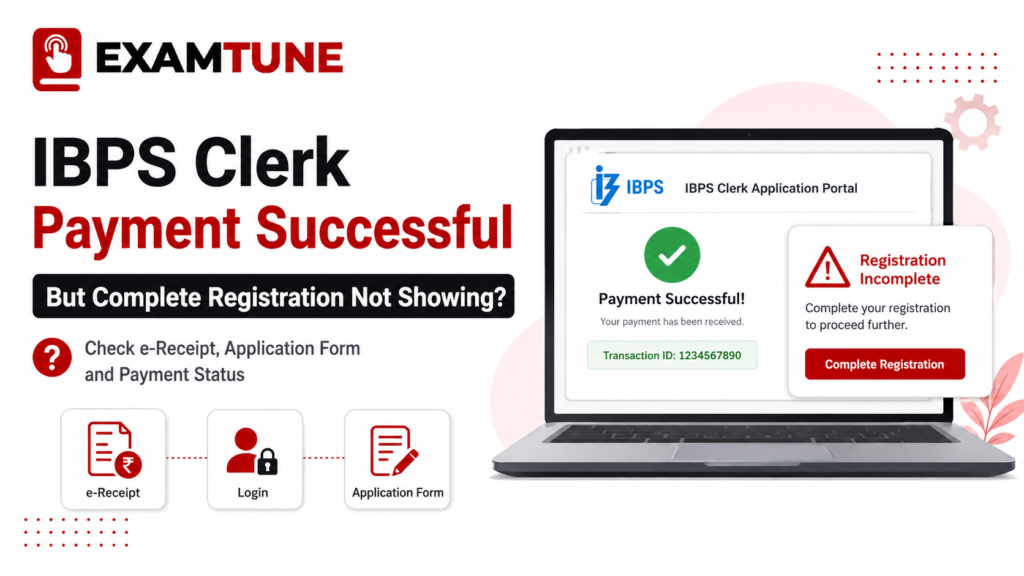
when Complete Registration is not showing.
IBPS Clerk Payment Successful Issue: Quick Overview
| Particular | Details |
|---|---|
| Exam Name | IBPS Clerk 2026 / CRP CSA-XVI |
| Main Issue | Payment successful but Complete Registration is not showing |
| Most Important Proof | e-Receipt and final online application form |
| First Action | Log in using the existing registration number |
| Online Registration Period | 1 August 2026 to 21 August 2026 |
| Last Date to Print Application | 5 September 2026 |
| Official Support | IBPS Candidate Grievance Redressal System |
What Is the Real Proof of Complete IBPS Clerk Registration?
Receiving a provisional registration number and password only confirms
that the initial registration details have been saved. It does not always
mean that the complete application process has been successfully finished.
For a valid final application, candidates must complete all mandatory
sections, upload the required documents, complete the final registration
process, and pay the application fee successfully.
After a successful transaction, an e-Receipt should normally be generated.
Candidates should also be able to download or print the final online
application form.
e-Receipt Available
Fee Paid Status
Final Application Form
| What Is Showing on the Portal? | Registration Status |
|---|---|
| Both the e-Receipt and final application form are available | Registration Complete |
| The application print shows that the fee has been paid | Registration is generally complete |
| Only a bank debit or UPI successful message is available | The portal status must be verified |
| The portal is asking for payment again | The previous transaction may not have been updated |
| Neither the e-Receipt nor the application form is available | Do not consider the application complete |
| Only the registration number and password were generated | The application may still be provisional |
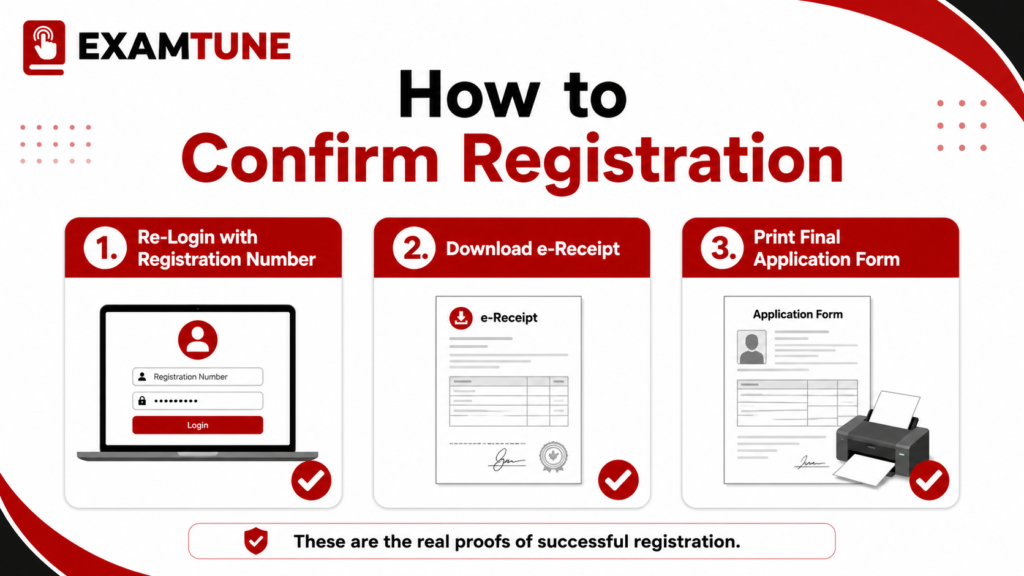
to confirm successful registration.
Why Does Registration Show Incomplete After Successful Payment?
There may be several technical or application-related reasons why
Complete Registration is not showing even after an
IBPS Clerk Payment Successful transaction.
1. The Payment Gateway Response Was Not Updated
The bank or UPI application may have processed the transaction successfully,
but the final payment gateway response may not have reached the IBPS
application portal.
In this situation, the amount may be deducted from the bank account while
the portal continues to show the fee as unpaid, pending, or incomplete.
2. Redirection Failed After Payment
After payment, the candidate is normally redirected to the application
portal. This redirection may fail because of an internet interruption,
browser closure, expired session, or gateway error.
3. Server Load or Status Synchronization Delay
A large number of candidates may be using the application portal at the
same time, especially during the first and final days of registration.
This can delay the update of the payment status, e-Receipt, or application
print option.
4. A Mandatory Application Stage Is Incomplete
The application may remain incomplete if a mandatory section has not been
completed, such as the photograph, signature, thumb impression,
handwritten declaration, live photograph, or required certificate upload.
5. Multiple Browser Tabs or Sessions Were Open
Opening the application on multiple tabs, browsers, mobile phones, or
computers at the same time may create session conflicts and payment status
errors.
IBPS Clerk Payment Successful but Registration Incomplete: 7 Steps
1
Open the Existing Registration Login
Do not start a new registration. Use the same provisional registration
number and password to open the
Login for Already Registered Candidates section.
The existing candidate login can be used to access the saved application,
payment status, e-Receipt and application print options.
2
Check Whether the e-Receipt Is Available
Open the e-Receipt or Print e-Receipt option from the application
dashboard. Check the candidate name, registration number, payment date,
amount and transaction details.
If the e-Receipt opens successfully, download it as a PDF and keep a
backup copy.
3
Download the Final Application Form
Open the Print Application or Re-Print Application option. The final
form should display your submitted details, uploaded documents and
payment information.
Save the application form as a PDF and keep both a digital copy and a
printed copy for future reference.
4
Log In Again After Some Time
If the payment status has not been updated, close all IBPS application
tabs and try again after some time. Use an updated version of Google
Chrome or Mozilla Firefox with a stable internet connection.
- Clear the browser cache and cookies.
- Try logging in through an Incognito or Private window.
- Keep only one IBPS application tab open.
- Use a laptop or desktop whenever possible.
- Avoid using an unstable mobile network.
5
Check the Bank Status and Portal Status Separately
A successful status in the UPI application or bank statement confirms
only that the bank processed the transaction. The IBPS portal should
also confirm the transaction through an e-Receipt and final application
form.
Save the following payment proofs:
- UPI or card transaction screenshot
- UTR or transaction reference number
- Bank debit SMS or bank statement
- Payment successful page screenshot
- Registration incomplete error screenshot
- Registration number and payment date
6
Confirm the Status Before Paying Again
Do not immediately make a second payment. First confirm that the
e-Receipt is unavailable, the final application form is not generated,
and the portal is showing the payment as unsuccessful, pending, or
unpaid.
7
Register an IBPS Grievance
If the issue is not resolved, register a complaint through the official
IBPS Candidate Grievance Redressal System. Attach payment proof,
transaction details and screenshots of the portal error.
Save the grievance or complaint number generated after submitting the
complaint.
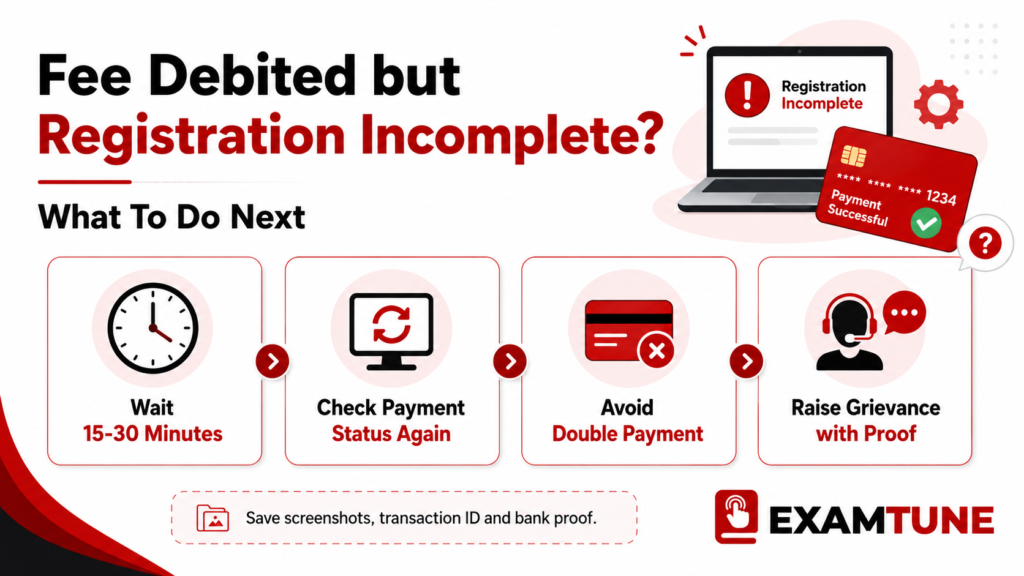
registering a grievance.
When Should You Pay the IBPS Clerk Application Fee Again?
If the online transaction was not completed successfully, the candidate
may log in again using the provisional registration number and password
and complete the application fee payment.
Check these three conditions before paying again:
- The e-Receipt is not being generated.
- The final application form does not show the fee as paid.
- The portal clearly shows the transaction as unsuccessful, pending,
or unpaid.
If the first payment has already been deducted and the portal status is
unclear, it is better to save the transaction proof and register a
grievance instead of making multiple payments immediately.
the server response. Do not press the Back or Refresh button and do not
close the browser. This may interrupt the transaction or increase the risk
of duplicate payment.
How to Register a Complaint for an IBPS Payment Issue
Candidates can register a new complaint through the IBPS Candidate
Grievance Redressal System. Clearly explain the problem and attach all
supporting transaction documents and screenshots.
Details to Include in the Complaint
- Candidate’s full name
- Provisional registration number
- Exam name: CRP CSA-XVI
- Registered email address
- Registered mobile number
- Payment date and time
- Amount deducted
- Transaction ID or UTR number
- Payment mode and bank name
- Exact error message displayed on the portal
- Browser, device and operating system details
Suggested Complaint Subject
CRP CSA-XVI Payment Successful but Complete Registration and e-Receipt
Not Showing
IBPS Grievance Complaint Message Sample
Dear Sir/Madam,
I completed the online application fee payment for CRP CSA-XVI using my
existing registration number. The amount has been debited from my bank
account and the transaction was shown as successful.
However, the payment status and Complete Registration status have not
been updated on the application portal. I am also unable to generate the
e-Receipt and final application form.
Kindly verify my transaction and confirm the final status of my
application. Payment proof, transaction reference details and portal
screenshots have been attached for verification.
Registration Number: [ENTER REGISTRATION NUMBER]
Transaction ID/UTR: [ENTER TRANSACTION ID]
Payment Date: [ENTER PAYMENT DATE]
Amount Deducted: [ENTER AMOUNT]
Regards,
[CANDIDATE NAME]
Does No Confirmation Email or SMS Mean Registration Has Failed?
The provisional registration number and password are normally generated
on the application screen and may also be sent to the registered email
address and mobile number.
If the email has not arrived, check the Spam, Promotions, Updates and All
Mail folders. Also search the registered mobile number for application
portal messages.
Do not decide the application status only on the basis of an email or SMS.
Log in through the existing candidate section and verify the e-Receipt and
final application form.
Correct Order of Complete Registration and Payment
- Enter all required application details.
- Upload the mandatory documents and live photograph.
- Check every field in the application preview.
- Click the Complete Registration button.
- Pay the application fee through the payment gateway.
- Wait for the successful server response.
- Download the e-Receipt and final application form.
After Complete Registration, some important details may become
non-editable or may only be changed during an official correction window.
Therefore, verify the candidate name, category, State or Union Territory,
contact information and uploaded documents before final submission.
Important IBPS Clerk 2026 Registration Dates
| Event | Official Date |
|---|---|
| Online Registration Starts | 1 August 2026 |
| Registration Closing Date | 21 August 2026 |
| Online Fee Payment Period | 1 August to 21 August 2026 |
| Closure for Editing Application Details | 21 August 2026 |
| Last Date for Printing the Application | 5 September 2026 |
issue unresolved until the last date. Heavy website traffic may cause
login, payment and application submission difficulties.
Mistakes to Avoid After IBPS Clerk Payment
Considering the Bank Debit Message as Final Proof
A bank debit message only confirms that the amount was deducted. Check the
e-Receipt and final application form to confirm registration.
Making Repeated Payments
Paying repeatedly without checking the previous transaction may result in
duplicate deductions.
Pressing Back or Refresh During Payment
Wait for the payment gateway and portal to display the final response.
Pressing Back or Refresh may interrupt the transaction.
Starting a New Registration
First log in using the existing registration number and check the saved
application and payment status.
Deleting Transaction Proof
The UTR number, bank debit message, statement and screenshots may be
required for grievance verification.
Not Checking the Final Application Form
Verify the candidate details, State or Union Territory, category, uploaded
documents and payment status in the final application form.
Final Registration Checklist
- The registration number and password are saved.
- The e-Receipt can be downloaded successfully.
- The final application form can be downloaded or printed.
- The application form shows the fee as paid.
- The photograph, signature and required documents are visible.
- The candidate name, category and State or Union Territory are correct.
- Backup copies of the application form and e-Receipt are saved.
- The transaction ID and bank payment proof are محفوظ.
Conclusion
If IBPS Clerk Payment Successful is displayed but
Complete Registration is not showing, do not consider the form complete
only because the amount was deducted from your bank account.
Log in using the existing registration number and check the e-Receipt and
final application form. If both documents are available and the fee status
is shown as paid, this is strong proof that the registration has been
completed.
If the e-Receipt is not generated, the application form is unavailable,
or the portal asks for payment again, save all screenshots and transaction
proofs and register a complaint through the official IBPS grievance portal.
e-Receipt and final application form safely stored as proof of successful
registration.
Related IBPS Clerk Articles
Official Resources
candidates understand common application and payment issues. Always follow
the official IBPS notification, application portal instructions and
grievance response for the final decision regarding registration and
payment status.
Frequently Asked Questions
How can I check the IBPS Clerk payment status after logging in?
Log in through the Existing Registration section using your registration number and password. Check the payment status, e-Receipt and Print Application options. The final application form should show whether the application fee has been received successfully
Why is the IBPS Clerk payment status showing pending?
A pending status may appear when the bank has processed the payment, but the payment gateway has not yet sent the final confirmation to the application portal. Wait for some time, log in again and check whether the e-Receipt has been generated.
What should I do if IBPS Clerk Payment Successful appears but the fee status is unpaid?
Save the bank transaction proof, UTR number and payment screenshot. Log in again and check the e-Receipt and final application form. Do not make another payment until you confirm that the previous transaction has not been updated.
Can I use the UTR number to verify my IBPS Clerk payment?
The UTR number is useful as transaction proof, especially when raising a grievance. However, it does not replace the e-Receipt or final application form as proof of completed registration.
What happens if the IBPS Clerk application fee is deducted twice?
Save the transaction details for both payments and check which payment is reflected on the application portal. Contact your bank and raise an IBPS grievance with both transaction IDs if the duplicate amount is not reversed.
Will the deducted amount be refunded if the IBPS transaction fails?
A failed or duplicate transaction may be reversed by the bank or payment gateway according to its processing rules. Keep the transaction reference number and bank statement. Contact the bank and submit an official grievance if the amount is not reversed.
Can I complete the payment using another payment method?
You may use another available payment method only when the portal clearly shows the previous transaction as unsuccessful or unpaid. Use the same registration number and avoid starting a new registration.
Is a payment successful screenshot enough as registration proof?
No. A payment screenshot only confirms that the transaction was processed or initiated. The e-Receipt and final application form showing the fee as paid are stronger proofs of successful registration.
Can I download the IBPS Clerk e-Receipt later?
The e-Receipt may remain available through the Existing Registration login during the permitted application or reprint period. Download it immediately and keep more than one backup copy.
What should I do if the Print Application option is not opening?
Use an updated browser, clear the browser cache and try logging in through an Incognito window. Check whether pop-ups or PDF downloads are blocked and try again during a less busy period.
Practice free quizzes, mock tests, current affairs and exam-wise preparation resources on ExamTune.